As a webmailer, we set up Roundcube, a modern and versatile online mail program, for most customers.
For automatic replies (autoresponders), Roundcube uses filters. Different types of filters are available, so that Roundcube can react flexibly to incoming mails. This article explains the use of a filter as an automatic absence message. If you would like to use other filter functions, please ask, we will be happy to help.
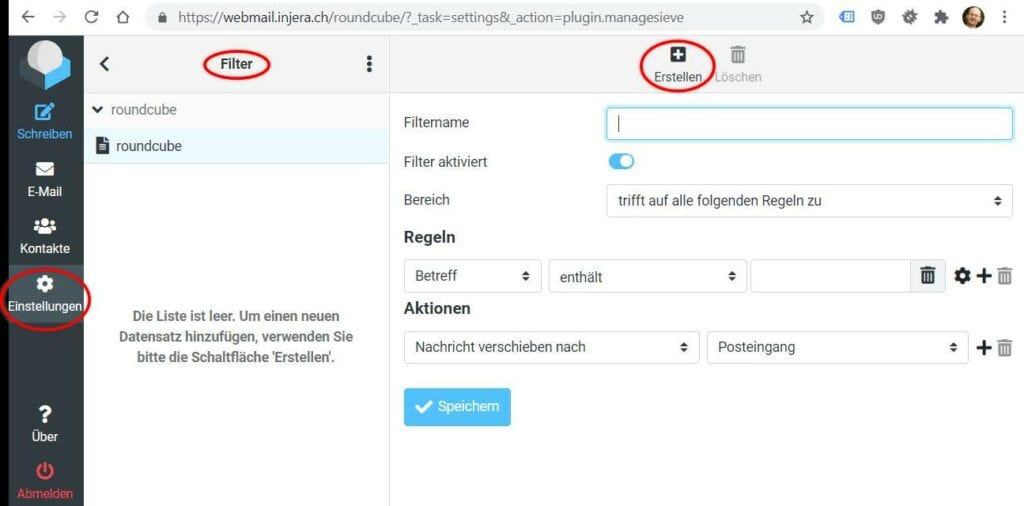
Overview in the picture:
Set up:
- Open Roundcube in your browser (usually something like webmail.yourdomain.ch or www.yourdomain.ch/roundcube or https://yourdomain.ch:2096).
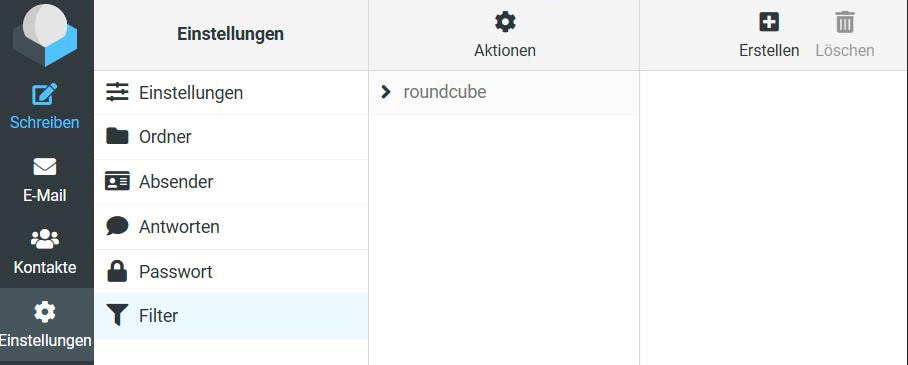
Login with your mailbox email address and password - In the main menu, go to “Settings” on the far left, then “Filters” in the submenu
- By clicking on the plus icon (“Create filter”) you open the form for a new filter
- Enter a name , e.g. “Holiday absence”
- Filter Enabled: The filter filters or responds only if it is enabled here. This allows you to prepare, deactivate, and save an autoresponder at any time. As soon as you need it, return here and activate it
- Select “applies to all the following rules“
- In the “Rules” dropdown, select “Date“, followed by the date format, then “Value is equal to or less than“, in the last field select the date of the last day on which the autoresponder should be active
- If you want the autoresponder to become active on a specific day, click Plus to add another rule. Select “Value is equal to or greater than” as the condition, and the date is the first day from which the rule should apply.
- Under “Actions” select “Reply with message“
- Enter message content, message subject , and reply email address . Answer E-mail address should not be one of the addresses to which the out-of-office message applies. For example, use [email protected]
- My e-mail addresses: Enter all addresses for which the autoresponder should be active. If you want it to apply to all your addresses, just click on “Fill in with all my addresses”
- “How often should messages be sent“: Messages that arrive within the specified time limit will only be replied to once.
- Click Save
- To test the settings, send yourself a message from a different email address
Attention: The hoster is able configure which functions are available and what the Roundcube menu looks like. It may be different for you, you might find filters in a different place, or not at all. Then please contact your webmaster or hoster.
The instructions here refer to my version of Roundcube at Hoststar (very similar at Novatrend):